Document System Tutorial Part 10 - Group Permission
In this part, we will discuss about creating a group permission for a specific model to the user group with some access levels.
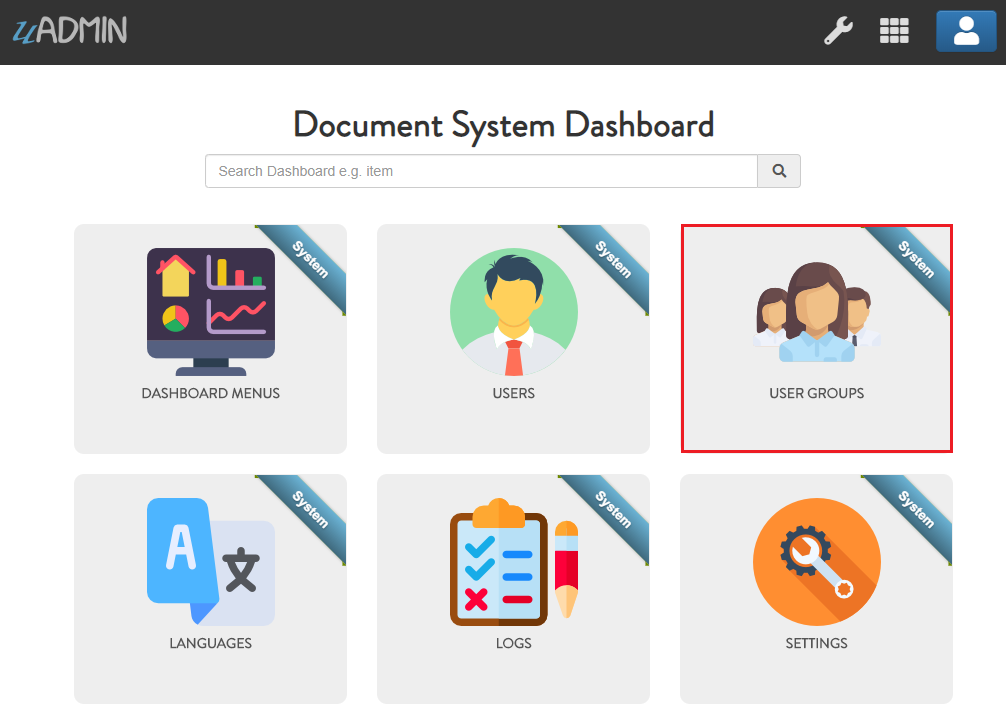
First of all, run your application using an admin account. Let’s create an access for Document model to the Developer group. In the Document System Dashboard, go to USER GROUPS.
Click the existing record that you have.

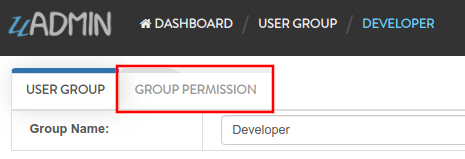
Click GROUP PERMISSION inline.
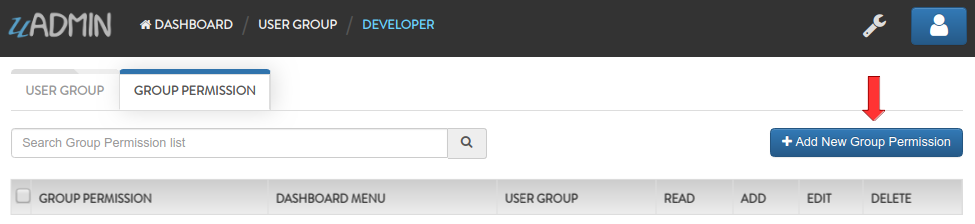
Click “Add New Group Permission”.
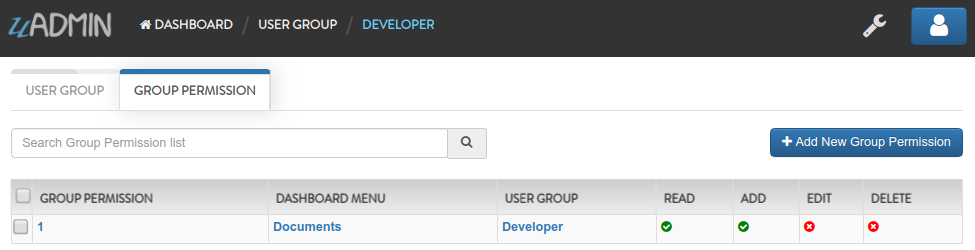
Set the Dashboard Menu value to Documents so the Developer user group can access into it. Let’s give an access level to Read and Add Permissions for that user group.
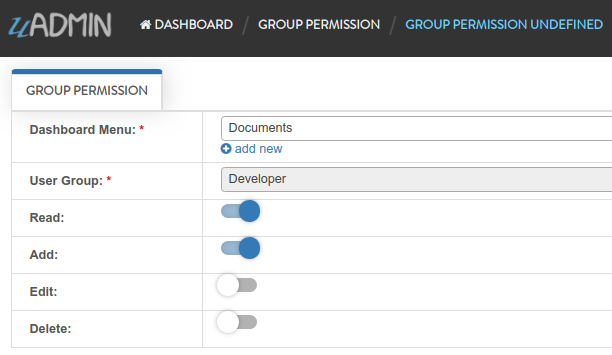
Result
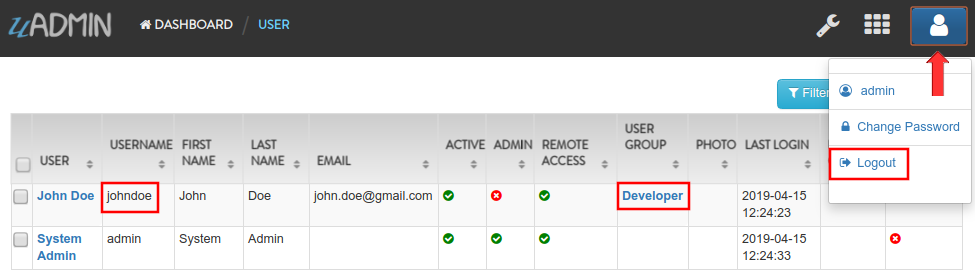
Go back to the Document System Dashboard then click USERS.

As you notice, the username johndoe is a member of the user group Developer. Click the profile icon on the top right corner then select Logout.
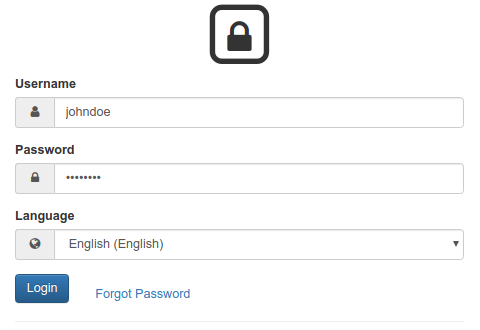
Login your johndoe account.
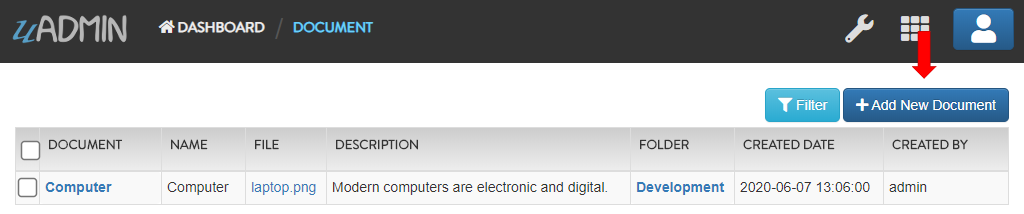
In the Document System Dashboard, only the Documents model is visible because johndoe user who is a part of Developer group is not an admin. The admin gives access only to the Documents model for this user. Now click on DOCUMENTS.

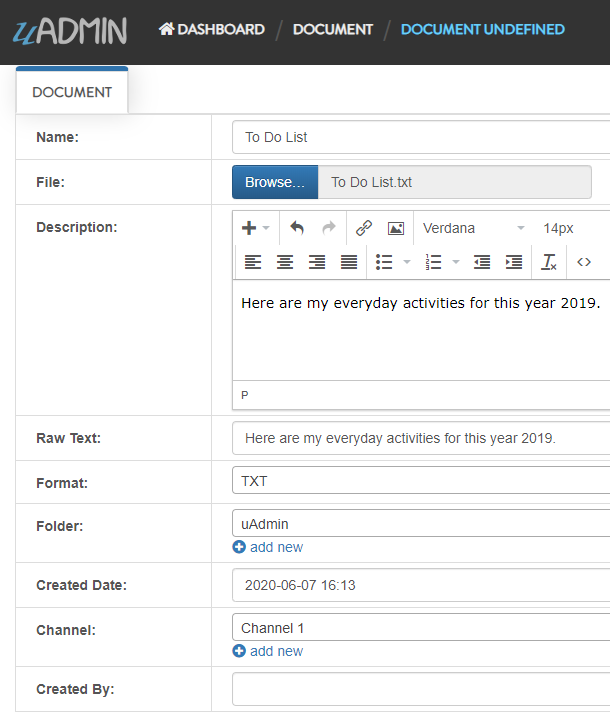
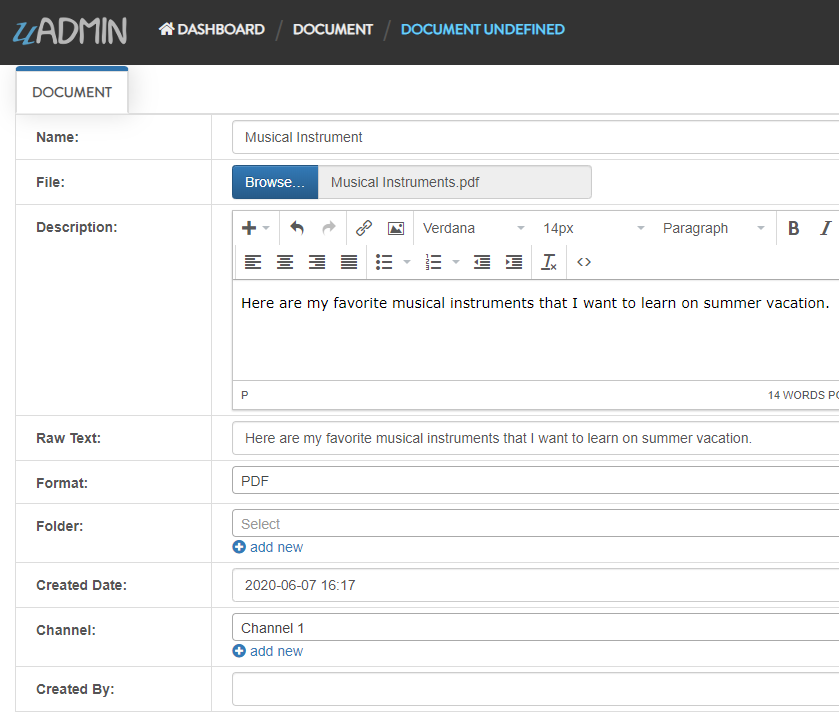
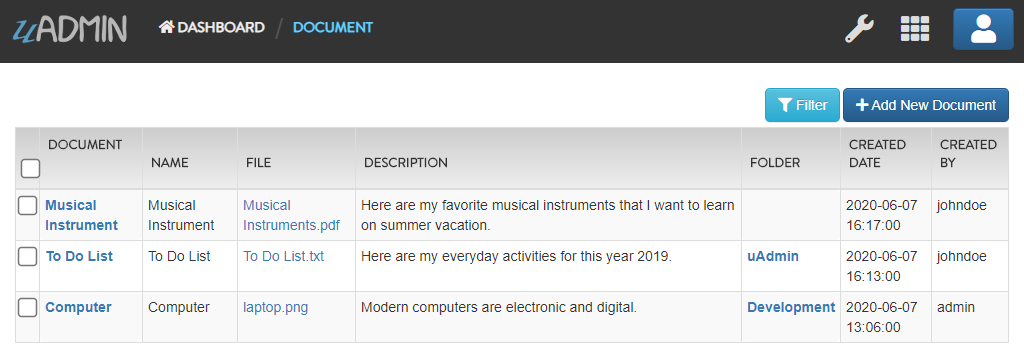
Let’s add 2 records: one with the folder specified and the one without the folder specified. Click Add New Document.
First record (with folder specified)
Second record (without folder specified)
Result
Click here to view our progress so far.
In the next part, we will talk about setting and getting permissions for Document and Folder records.